


Game booster GFX Fire Fix
4.660.00 Reviews
App Specs
- Version
- 25.09.27
- Updated On
- License
- Free
- Downloads
- 500,000+
- Developer
- Royal Games Boosters
- Categories
- Libraries & Demo
- Platform
- Android
Screenshots
 Analysis by AppCompare
I judge a game booster by what happens before, during and after I launch a game—not by the promise of a dramatic speed boost. Game Booster GFX Fire Fix is aimed at players who want a quick way to prepare a phone for play, particularly when a game feels less responsive than usual. My main advice is to approach it as a tuning aid, not a substitute for a device that can no longer comfortably run a demanding game.
Start with the problem you actually have
Before changing settings, I’d identify what is bothering me: choppy movement, slow responses, distracting background activity or heat during a long session. Those problems can feel similar, but they do not necessarily have the same cause. A graphics adjustment may help with a demanding visual load, while closing other apps may be more relevant if the phone is busy doing several things at once. If the game is struggling because the device is simply too old for its current demands, a booster cannot turn it into newer hardware.
That distinction matters because the best result is often a modest, consistent improvement rather than a sudden transformation. I would test one change at a time, play the same kind of session, and keep whichever setting makes the game feel more comfortable. Changing several things together makes it hard to know what helped—and makes it easier to blame the booster for a problem that came from a different setting.
A practical setup, from launch to play
My preferred workflow is simple: open the app before a session, look through the available controls, and choose conservative graphics options first if a game is stuttering. Then I’d use the booster option, launch the game, and pay attention to the parts that used to cause trouble. A crowded fight, a busy scene or a quick change between menus can reveal more than a quiet opening screen. If the game feels worse or the image becomes less pleasant, I’d restore the previous setting instead of assuming that the most aggressive option is automatically best.
There is a useful trade-off here. Lower visual settings can make a game feel steadier on a strained phone, but they may also make the picture less crisp. For a competitive match, I might value responsive controls over visual detail; for a story game, I may prefer richer-looking graphics even if the phone occasionally hesitates. The right choice depends on what I play and what bothers me most, rather than on a universal “best” configuration.
I would also make a quick comparison with the phone’s normal behavior. Try the game once without changing anything, then repeat a similar session after using the app. Keep the game, settings and general session length as alike as possible. That is not a laboratory test, but it helps separate a genuine improvement from the natural variation between matches. If the difference is hard to notice, there may be little reason to add another step to the launch routine.
Where it fits among the alternatives
Compared with opening a phone’s built-in game mode, a separate tool can feel more focused on game preparation and graphics choices. A built-in option may be simpler if all I want is a convenient gaming profile, while changing settings inside the game itself is often the clearest route when the game already provides useful graphics controls. I would not run several optimizers at once: overlapping background-management tools can make it harder to tell which one is helping, and the extra routine may not be worth it.
Worth Reading Before You Choose

Flipboard Shows What News Apps Must Do Beyond the Feed

Switching to Android Auto Means Rethinking Your Driving Routine

Google Calendar Makes a Crowded Week Easier to Manage

Ludo King Makes the Most of the Minutes Between Plans

Baby Panda World Brings Quick Play to Modern Phones, but Its Game Library Feels Busy

ESPN’s Live Game View Makes Following Close Games Easier
The app sits in the practical end of the Libraries & Demo space: it is a utility for trying adjustments, not a game in its own right. Royal Games Boosters is the developer. It is free, has an Everyone age rating, and supports Android 7.0 or later. Its current version is 25.09.27; it first appeared on February 17, 2022. Those details make it approachable for many Android users, but they do not guarantee that every control will suit every phone or game.
First Impressions and Setup
Alright, let’s dive right into it. Setting up Game Booster GFX Fire Fix was a breeze. The app is available on both Android and iOS platforms, which is super convenient. Upon launching the app, I was greeted with a clean and intuitive interface. It didn’t feel cluttered, which is always a plus in my book. The layout is straightforward, making it easy to navigate, even for a first-time user like me.
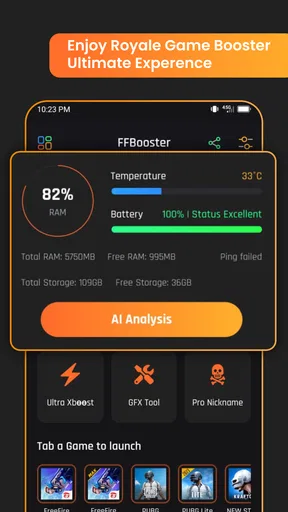
The app offers a variety of settings to customize your gaming experience. From adjusting the graphics quality to optimizing your device’s performance, it covers all bases. I especially appreciated the detailed instructions provided for each feature, making it less of a guessing game and more of a guided tour.
Feature Breakdown
Here’s where things get exciting. The app boasts a slew of features designed to enhance gaming performance. Let’s break down some of the highlights:
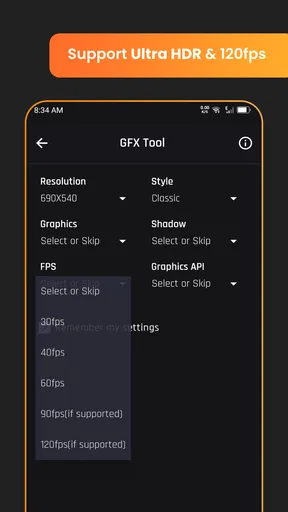
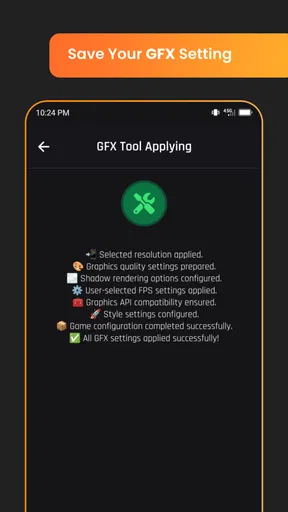
- GFX Tool: This feature allows you to tweak graphics settings to match your device’s capabilities. It’s perfect for fine-tuning visual elements, ensuring smoother gameplay. I played around with the resolution and FPS settings, and the difference was noticeable.
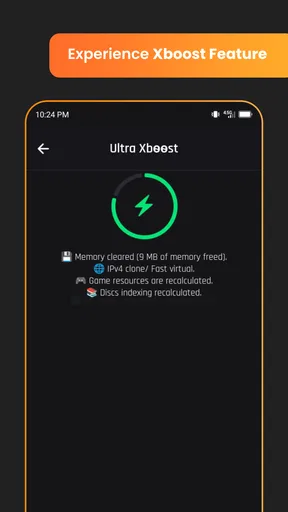
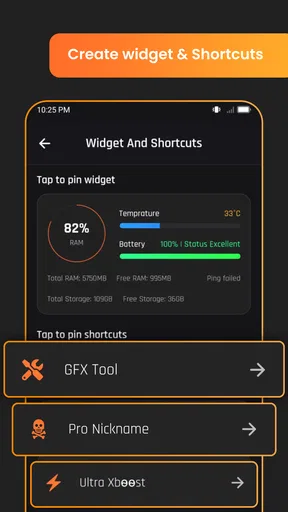
- Game Booster: This is where the magic happens. With a simple tap, the app optimizes your phone’s resources, closing unnecessary background apps to free up RAM. I tested this out with a resource-heavy game, and the improvement in speed and responsiveness was palpable.
- Cooling System: Overheating is a common issue during intense gaming sessions. Thankfully, Game Booster GFX Fire Fix includes a cooling feature to help manage your device’s temperature. It’s like having a mini AC for your phone!
Make the handoff to the game smoothly
The point of a booster is to get me into the game with less friction, so I’d keep the routine short: make the adjustments before queuing, start the game from the path the app presents, and avoid hopping between multiple utility screens once a match is about to begin. If a game asks me to restart after graphics changes, I’d do that before joining friends rather than mid-session. A minute spent checking the setup is better than discovering an unwanted visual change during a match.
That handoff is also where I would be cautious with online play. I’d stick to settings the game itself allows and avoid treating any external adjustment as a guarantee of better performance or compatibility. If a game behaves unexpectedly after a change, revert it and launch normally. For a game where account rules or competitive integrity are especially important, the safest choice is to rely on its own settings and the phone’s standard tools.
Who is likely to get value from it?
This is most appealing to someone who regularly plays graphics-heavy games on a phone that is capable but occasionally bogged down, and who is willing to compare settings rather than expect a one-tap cure. It can also suit a player who wants a repeatable pre-game checklist: tidy the session, make a cautious graphics adjustment, then see whether play feels better. The app has an average rating of 4.5 from around 4,600 ratings, alongside 31 written reviews, and it has passed 500,000 installs. That level of uptake suggests broad interest, though individual results still depend on the device and game.
I’d skip it if my games already run smoothly, if I dislike changing graphics settings, or if I mainly want a system-level fix for battery wear, weak network service or a faulty device. It is also not the first place I’d look for online lag: network delay can make a match feel sluggish even when the phone is rendering smoothly. In that case, checking the connection or moving closer to a reliable network is more relevant than adjusting graphics.
Performance and Experience
Now, onto the real question: Does it actually work? In my experience, yes, it absolutely does. After setting up the app, I played several graphics-intensive games, and I could feel the difference. The gameplay was smoother, and there were fewer lags. My phone didn’t overheat as quickly, which is a huge plus.
One of the standout moments was playing a popular battle royale game. Normally, I’d experience some stuttering during intense firefights, but with the app’s optimization, everything ran like butter. It was a game-changer, quite literally.
Read the result, not just the first match
For an everyday test, I’d use the app before a short evening session, then check how the phone feels after several matches rather than judging it by the opening minutes. If the improvement holds through a busy scene, the setup may be worth keeping. If the phone still slows down later, that is a sign to shorten the session, let the device cool naturally, or reduce demands further; a booster should not be treated as a way to ignore heat or other signs of strain.
It is also worth separating smoother play from better connectivity. A more stable-looking animation does not necessarily mean a faster internet connection, and a missed action in an online match may be caused by the network rather than graphics performance. I find this distinction useful because it stops me from repeatedly changing visual settings when the real problem is elsewhere.
Where the routine can break down
The main friction is that improvement is not guaranteed, and the result can vary by phone, game and settings. Graphics adjustments may trade image quality for steadier play, while a background cleanup may have little effect if the game is limited by something else. A booster can also become one more app to open and manage. If I have to keep undoing changes or cannot tell what caused a difference, I would return to the game’s own controls and use the simpler setup.
There is a practical question about trust, too: does it need to be involved every time? I would treat it as optional. If one sensible configuration works, there is no benefit in repeatedly changing it before every match. If an update to the game or the phone changes how things feel, I’d reassess then, using the same cautious, one-change-at-a-time approach. That keeps troubleshooting understandable and avoids turning gaming into a settings project.
Final Thoughts
In conclusion, Game Booster GFX Fire Fix is a must-have for any mobile gamer looking to elevate their gaming experience. Whether you’re a casual gamer or a hardcore enthusiast, the app provides the tools you need to get the most out of your device.
It’s easy to use, effective, and genuinely enhances performance. Plus, the fact that it’s available for both Android and iOS means no one has to miss out. If you’re tired of your phone holding you back during gaming sessions, I highly recommend giving this app a try. You might just be surprised at how much it can transform your mobile gaming life.
My recommendation after trying the workflow
I’d approach it with a small, reversible experiment: choose one game that regularly gives you trouble, note its current graphics settings, and make only one adjustment before testing a similar session. Keep the change only if it improves the part of play you care about without making the picture distracting. This is more useful than switching every available option at once, because you can identify what actually made a difference and undo it if needed.
In short, I see this as a focused option for players who enjoy tuning their setup and can tell the difference between graphics strain, background activity and network delay. If you want a dependable shortcut to fix every slowdown, you may be disappointed; if you are comfortable experimenting carefully, it gives you a practical place to start.
Pros
- Enhances gaming performance effectively.
- Customizable graphics settings available.
- User-friendly interface for easy navigation.
- Supports a wide range of games.
- Improves device cooling during gameplay.
Cons
- May drain battery quickly.
- Some features need in-app purchases.
- Occasional ads may disrupt usage.
- Not all devices fully supported.
- Requires permissions that may concern privacy.
FAQs for Game booster GFX Fire Fix
What is Game Booster GFX Fire Fix and how does it work?
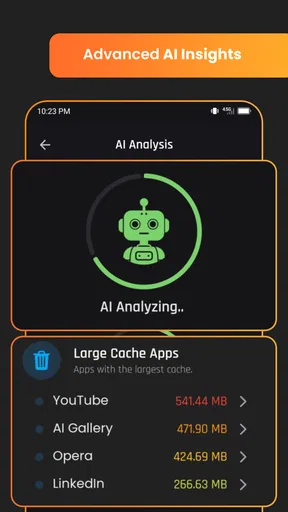
Game Booster GFX Fire Fix is an app designed to enhance the gaming experience on your Android device. It optimizes your device's performance by freeing up RAM, adjusting system settings, and managing background apps. Additionally, it provides tools for customizing graphics settings in games, allowing for smoother gameplay and improved visuals.
Is Game Booster GFX Fire Fix safe to use on my device?
Yes, Game Booster GFX Fire Fix is generally safe to use. It modifies certain system settings to optimize performance, but it does not require root access, minimizing potential risks. However, it's crucial to download the app from a reputable source, such as the Google Play Store, to avoid malicious software.
Will using Game Booster GFX Fire Fix improve my device's gaming performance?
Game Booster GFX Fire Fix can significantly enhance your device's gaming performance by optimizing memory usage and adjusting graphics settings. While results may vary depending on your device’s specifications, most users experience smoother gameplay and better graphics, especially on older or lower-end devices.
Does Game Booster GFX Fire Fix support all games on Android?
Game Booster GFX Fire Fix is compatible with most Android games, particularly those that benefit from graphics customization and performance optimization. However, the level of improvement may depend on the game's compatibility with the app’s features. Always check the app’s support page for a list of tested games.
Do I need a high-end device to benefit from Game Booster GFX Fire Fix?
No, Game Booster GFX Fire Fix is designed to enhance performance on a wide range of devices. While high-end devices will see improvements, the app is particularly beneficial for mid-range and older devices that struggle with demanding games, providing a noticeable boost in performance and graphics quality.


